Generative Expand
Need more room around your product without cropping it out? Use Generative Expand to fill beyond the original photo and explore a composition with the aspect ratio you need.
Start for free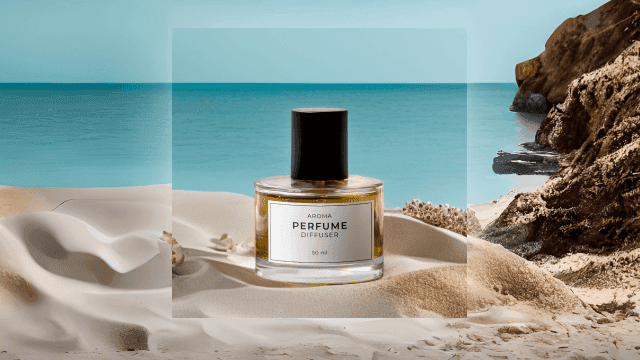
Get started in three steps
- 01
Prepare the photo to expand
Upload a photo of the product and its existing setting. Notice whether the subject touches the frame and where more space is needed. Think about the product's position in the new scene before choosing a ratio.
- 02
Choose a ratio and composition
Consider the destination, such as a wide banner or a vertical post. Plan the space around the product and where copy may go later. This creates content outside the frame instead of simply stretching the original photo.
- 03
Check the extended background
Look at the transition from the original to the generated area. Follow surface patterns, wall lines, light and shadows to spot awkward changes. Check that the product still has a clear role in the finished composition.
Made for your next product image
Adapt photos for social posts
Create surrounding space when using a horizontal product photo in a different ratio. Explore a composition without heavily cropping the subject. Check the product's position within the area that will actually be visible in the post.
Wider product detail scenes
Extend the background when you need room for descriptions beside a photo. Check whether busy patterns or new objects occupy the planned copy area. Aim for a composition where the product and explanation work together.
Store banner layouts
Use an existing product photo as the starting point for a banner. Check that the new space carries the mood of the scene and the subject remains visible on smaller screens. Confirm final dimensions with the destination.
Tips for a better result
Decide what the space is for
Plan useful room rather than simply a larger image. Your composition will differ depending on whether a description goes beside the product or a heading above it. Make use of space already available in the original too.
Follow lines and repeating patterns
Table edges and tiles can become misaligned across the transition. Trace them from the original into the generated area. Also look for repeated props and unexpected objects that do not belong in the scene.
Review the added area as a new scene
AI creates what appears outside the original frame. Treat it as a visual setting for the product, rather than a reconstruction of the real location. Compare the product itself with the original as well.
Frequently asked questions
What is Generative Expand?
It creates new areas outside an original photo to form a scene at your desired aspect ratio. Use it for more background or space around the subject, and review the generated area alongside the original.
How is it different from making an image larger?
It fills outside the frame with new content instead of enlarging the existing picture. Explore AI Image Sharpener for clarity, and Generative Expand for a wider composition.
How are parts outside the original photo created?
The new area is generated from the existing scene. It is not an exact reconstruction of the real location, so new objects or patterns can appear. Check the background structure and product accuracy before use.
What if I want to add text in the expanded space?
Plan a composition with room in the direction where you want the copy. A busy generated area may reduce readability. Check how the text and product work together when editing the final banner or product page.
Can I request a wider composition through the chatbot?
Ask the AI photo chatbot in the app to add space around the product or widen the composition. Explain the destination and the room you need, then review the transition and describe any further adjustments.
How much does it cost?
You can start for free. The amount you can use varies by plan, so check the pricing page for current options before deciding how to use Photio for your work.
View pricingExplore other AI tools
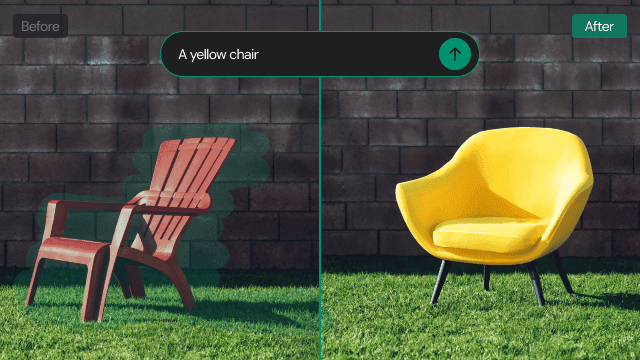
AI Photo Editor
Love the product photo but want to change a distracting prop? Brush over the area to remove an object, or describe what you want to replace or add.
Learn more →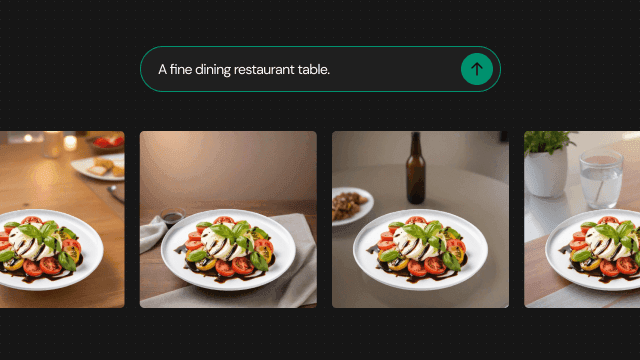
Text to Background
Describe the scene you have in mind, even without a reference photo. Use words for the setting, surface and lighting to create a new background around your product.
Learn more →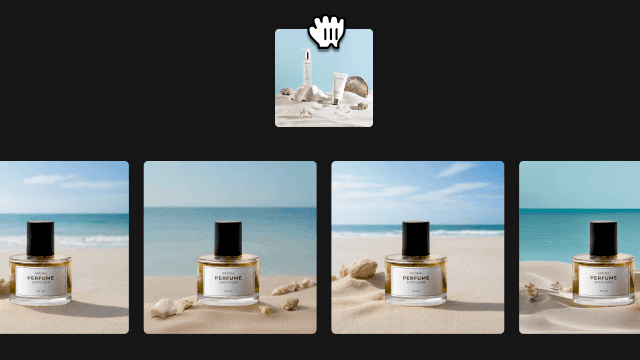
Image to Background
Show the atmosphere that is difficult to put into words. Prepare your product photo and a reference image, then explore a new background inspired by its look and feel.
Learn more →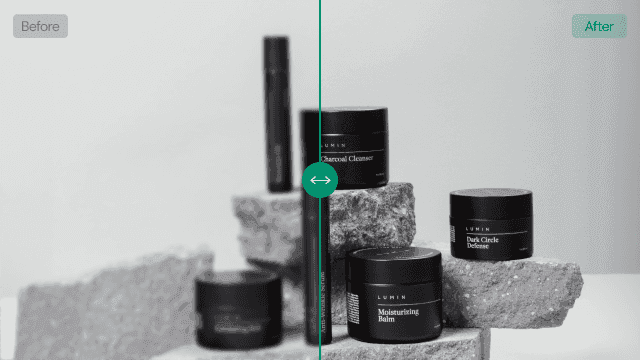
AI Image Sharpener
Want to use a product photo at a larger size but need more clarity? Try AI image enhancement with 2x or 4x upscaling. Availability of 4x depends on your plan.
Learn more →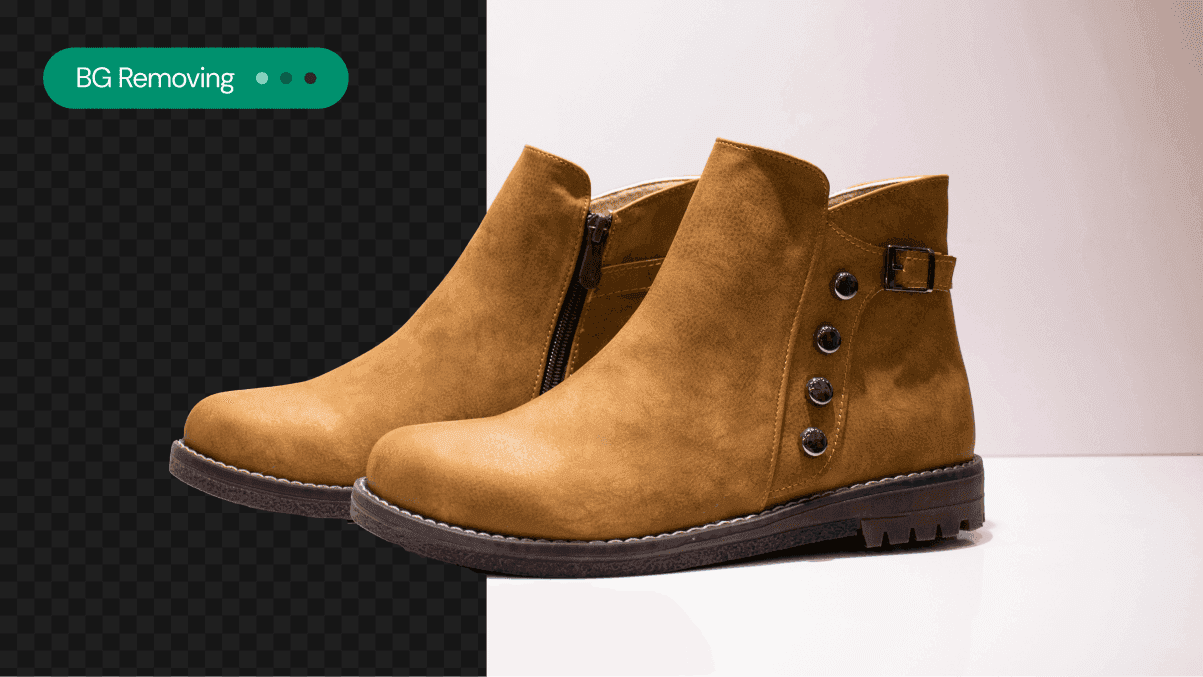
Background Remover
Is the setting drawing attention away from your product? Use AI Background Remover to separate the subject and prepare a starting point for its next scene.
Learn more →