Text to Background
Describe the scene you have in mind, even without a reference photo. Use words for the setting, surface and lighting to create a new background around your product.
Start for free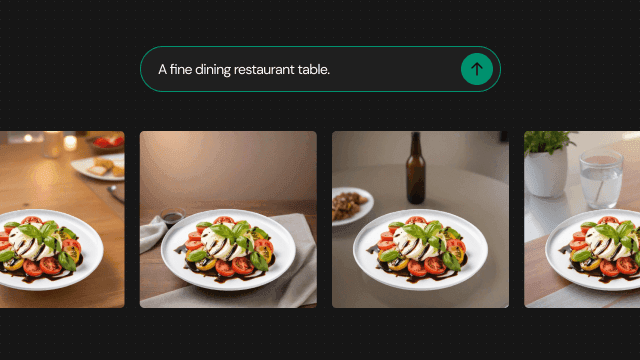
Get started in three steps
- 01
Upload your product photo
Choose a photo that clearly shows the product's outline and color, and think about where it should sit. Notice the direction of light in the original to help you describe a setting that suits it.
- 02
Describe the background
Name the elements that define your scene, such as the location, surface material and main colors. Try ‘a wooden table beside a bright window, soft natural light.’ Start with the elements that matter most.
- 03
Review and refine the description
Check the scale, lighting and shadows between the product and background. If the mood is different from what you wanted, specify what should change and try again. You can also use the photo editor to refine distracting props.
Made for your next product image
Store listing images
Plan a simple background that makes the product's features visible. A wall or surface that contrasts with the product can give the scene a clear direction. Check how the product reads in a small listing image.
Product detail scenes
Describe a place where the product might be used: a kitchen shelf, desk or living room table. Choose a setting connected to the product and avoid arrangements that give the wrong impression of its size or purpose.
Themed social posts
Try background colors and moods that suit a season or campaign. Explore different settings for the same product, and check whether the decoration draws attention away from the item you want to show.
Tips for a better result
Choose a central setting
Start with one clear scene instead of listing conflicting places and styles. Decide on the surface, walls and lighting in turn. This also makes it easier to identify what needs changing in the result.
Match the direction of light
Observe how light falls on the original product. A similar lighting description can help connect it with the new setting. Pay particular attention to the shadow and reflections beneath the product.
Plan space around the subject
Think about useful space before adding lots of props. If you plan to place copy beside the product later, imagine a scene without busy patterns and check readability in the layout where you will use it.
Frequently asked questions
What is Text to Background?
It creates a new setting from your product photo and a written description. Instead of providing a reference image, explain the place and mood you have in mind to explore a visual idea.
What kind of descriptions can I provide?
Describe visible details such as location, surface material, lighting and colors. Adding ‘a warm wooden table and soft window light’ to ‘a cozy atmosphere’ makes the scene you want more concrete.
Will the background match my description exactly?
Results can vary even with the same description. Check the product outline, background structure and prop sizes, then revise details that differ from your intent. Treat the result as a proposed scene to review.
Can I modify a generated background?
Change the description if the overall setting needs work. Use AI Photo Editor for a distracting object, or explore Generative Expand if you need more space around the product.
What if I already have a reference photo?
Image to Background lets you communicate the mood through a photo. Choose text when it is easier to explain the setting in words, or a reference image when you want to show the colors and composition.
How much does it cost?
You can start for free. The amount you can use varies by plan, so check the pricing page for current options before deciding how to use Photio for your work.
View pricingExplore other AI tools
AI Photo Editor
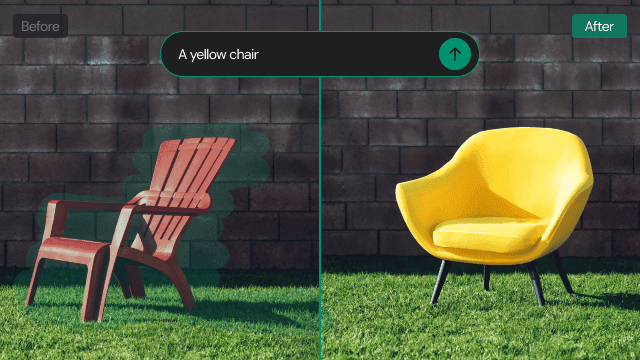
Love the product photo but want to change a distracting prop? Brush over the area to remove an object, or describe what you want to replace or add.
Learn more →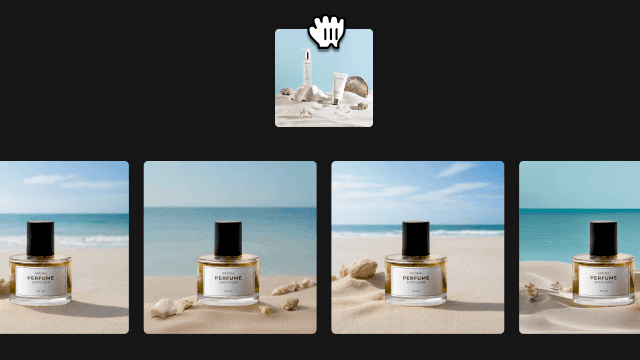
Image to Background
Show the atmosphere that is difficult to put into words. Prepare your product photo and a reference image, then explore a new background inspired by its look and feel.
Learn more →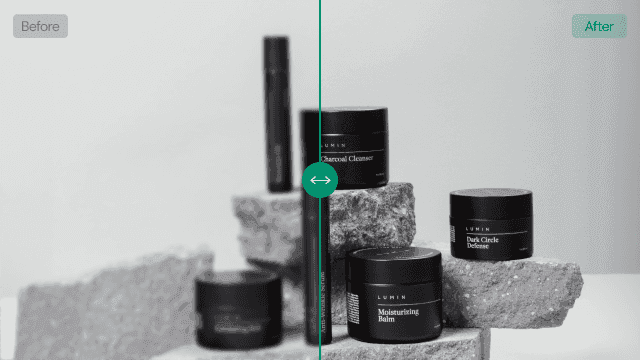
AI Image Sharpener
Want to use a product photo at a larger size but need more clarity? Try AI image enhancement with 2x or 4x upscaling. Availability of 4x depends on your plan.
Learn more →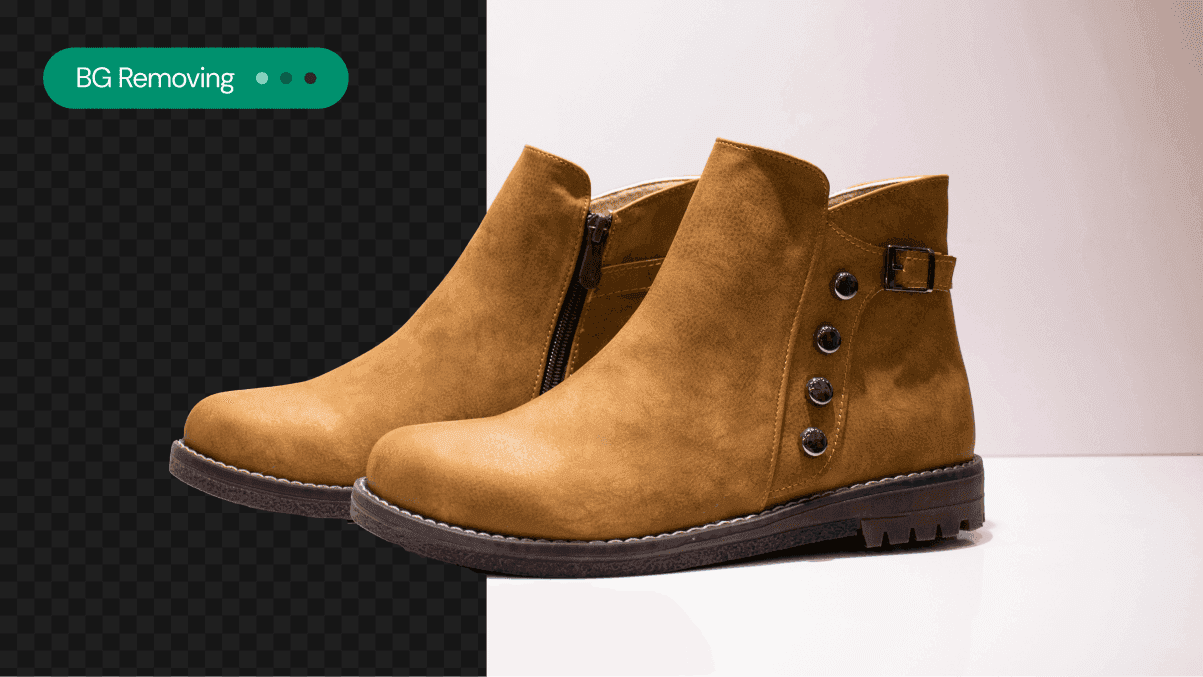
Background Remover
Is the setting drawing attention away from your product? Use AI Background Remover to separate the subject and prepare a starting point for its next scene.
Learn more →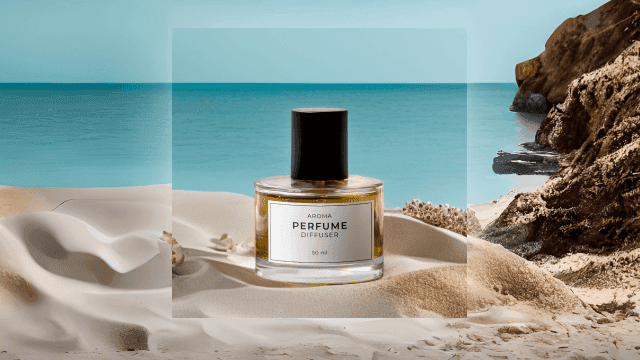
Generative Expand
Need more room around your product without cropping it out? Use Generative Expand to fill beyond the original photo and explore a composition with the aspect ratio you need.
Learn more →