Image to Background
Show the atmosphere that is difficult to put into words. Prepare your product photo and a reference image, then explore a new background inspired by its look and feel.
Start for free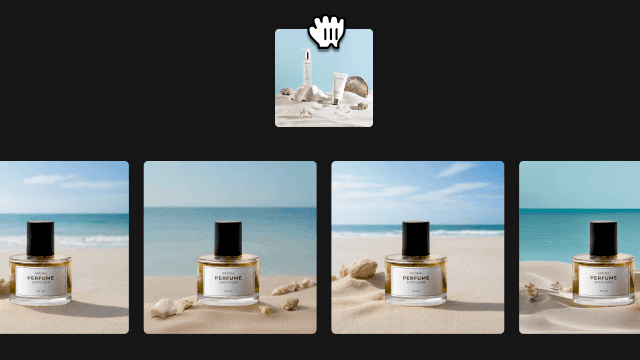
Get started in three steps
- 01
Prepare a clear product photo
Upload the product you want to place in the scene. Check its shape, color and camera angle. A reference setting with a similar viewpoint can make it easier to choose a suitable composition.
- 02
Upload a reference image
Choose a photo that clearly shows the colors, lighting and materials you want. Decide what you like about it. A simple setting with room for the product can be a useful place to start.
- 03
Compare the new scene with your product
Check whether the atmosphere fits and the perspective feels natural. Compare the product label and outline with the original. Change the reference for a different mood, or use the photo editor to adjust a local prop.
Made for your next product image
Listing images with a brand mood
Use a scene that reflects the colors and materials associated with your brand. It can guide the visual direction across product photos. Results may differ with the same reference, so compare them side by side.
Spaces for product detail pages
Show the feeling of a room or table where the product could be used. A reference can communicate lighting and arrangements that are hard to describe. Check that the product's apparent scale makes sense.
Color ideas for social images
Choose a reference that clearly expresses the color combination you want for a post. Consider how it works with the product's own color. If the scene has too many props, try a simpler reference.
Tips for a better result
Look for a similar camera angle
A front-facing product can look awkward against a background viewed from above. Notice the reference's viewpoint and the direction of the surface. Start with a scene whose perspective suits your product photo.
Identify what you want to reference
Decide whether it is the color, lighting or arrangement you like. A reference with a clear mood makes it easier to evaluate the result and decide what to try next than one with conflicting visual cues.
Use it as inspiration for a new scene
The reference communicates a direction. Do not expect every object and placement to be copied exactly. Review the new scene on its own and check that it suits the product information you intend to publish.
Frequently asked questions
What is Image to Background?
It creates a background using a product photo and a reference image. When a mood is difficult to explain, you can communicate colors, materials and lighting through a photo to explore a suitable setting.
How does the reference image affect the output?
The reference's atmosphere guides a new background. It does not reproduce every object or composition exactly. Consider the product's angle and scale when deciding how closely the result matches your intent.
What if I do not have a reference image?
Use Text to Background to describe the setting, palette and lighting. You can also ask the AI photo chatbot for a background in words. Choose the starting point that fits the material you have.
How should I choose a reference photo?
Look for a clear view of the background features you want and a viewpoint similar to your product photo. A scene with readable lighting and materials is easier to assess than one crowded with decorations or other products.
What if I want to change the generated background?
Try another reference if the whole atmosphere is wrong. Use AI Photo Editor to remove or replace a local object. Afterwards, check the product outline and where it meets the surface again.
How much does it cost?
You can start for free. The amount you can use varies by plan, so check the pricing page for current options before deciding how to use Photio for your work.
View pricingExplore other AI tools
AI Photo Editor
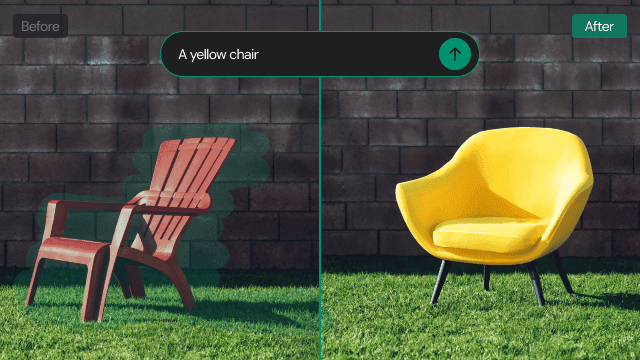
Love the product photo but want to change a distracting prop? Brush over the area to remove an object, or describe what you want to replace or add.
Learn more →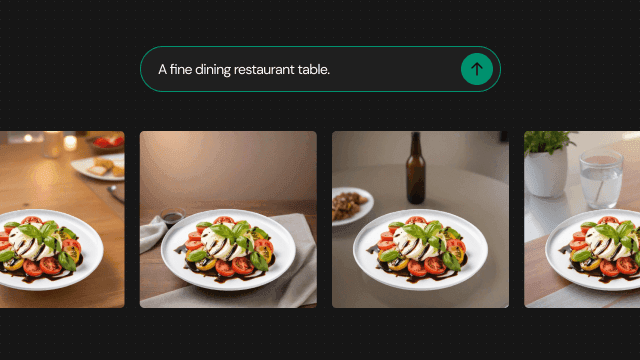
Text to Background
Describe the scene you have in mind, even without a reference photo. Use words for the setting, surface and lighting to create a new background around your product.
Learn more →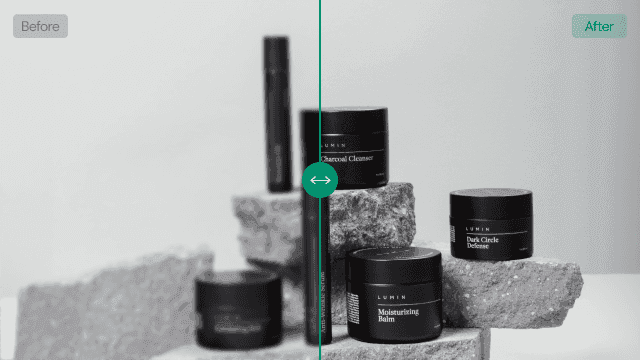
AI Image Sharpener
Want to use a product photo at a larger size but need more clarity? Try AI image enhancement with 2x or 4x upscaling. Availability of 4x depends on your plan.
Learn more →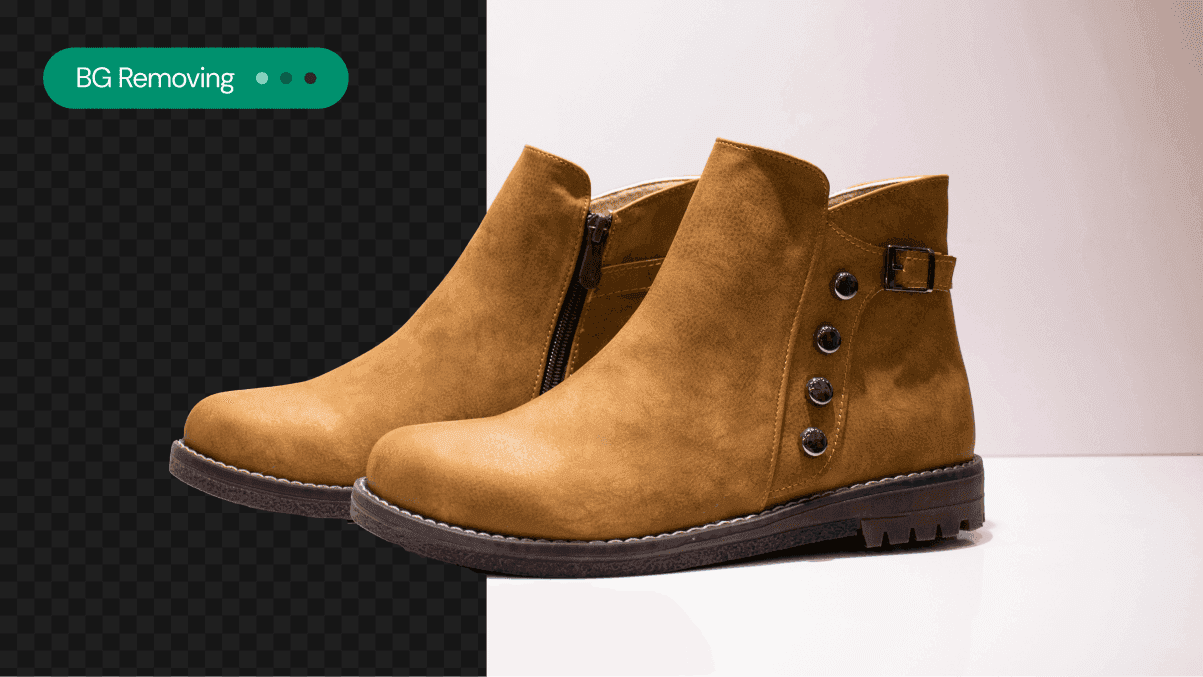
Background Remover
Is the setting drawing attention away from your product? Use AI Background Remover to separate the subject and prepare a starting point for its next scene.
Learn more →
Generative Expand
Need more room around your product without cropping it out? Use Generative Expand to fill beyond the original photo and explore a composition with the aspect ratio you need.
Learn more →